Part 1 of 4
Install BepInEx 6 (IL2CPP x64)
Put the loader in place. Six items from the archive go into the game folder, and one simple litmus test — winhttp.dll sitting next to SeaOfStars.exe — tells you it landed right.
Everything in this part happens in File Explorer — no editors, no command lines. You'll need
SeaofStars-BepInEx-Unity_IL2CPP-win-x64-6_0_0-be_785_6abdba4.rar from the downloads page.
-
Find the game folder
In your Steam library, right-click Sea of Stars: Sunset Edition → Manage → Browse local files. Steam opens the install folder — you'll see
SeaOfStars.exe,GameAssembly.dll,UnityPlayer.dlland theSeaOfStars_Datafolder. Keep this window open; it's the destination for everything in this guide.A typical path (yours may be on a different drive):
F:\SteamLibrary\steamapps\common\Sea of StarsNote the folder is named plain
Sea of Stars— the Sunset Edition branding doesn't change the folder name. -
Close the game completely
Make sure Sea of Stars isn't running (check the system tray and Task Manager if unsure). Copying loader files while the game holds them open is the fastest way to a half-installed mess.
-
Open the archive — and mind the folder inside it
Open
SeaofStars-BepInEx-Unity_IL2CPP-win-x64-6_0_0-be_785_6abdba4.rarwith WinRAR, 7-Zip or NanaZip. Inside, there is exactly one folder:SeaofStars-BepInEx-Unity_IL2CPP-win-x64-6_0_0-be_785_6abdba4\The game needs that folder's contents — not the folder itself. Enter it (double-click it inside the archive window) so you can see the six items:
.doorstop_version,BepInEx,changelog.txt,doorstop_config.ini,dotnetandwinhttp.dll. -
Copy the six items into the game folder
Select all six items inside that folder and drag them into the game folder from step 1 (or extract anywhere first, open the extracted folder, then cut & paste its contents across — same result). If Windows asks about merging or replacing anything, confirm.
-
Run the litmus test
One glance tells you whether it landed right:
winhttp.dllmust be sitting in the same folder asSeaOfStars.exe. If it is, everything else is too.
What the game folder should look like now
Here's the real thing — the game folder immediately after a correct install (BepInEx has already run
once in this shot, which is why the BepInEx folder shows a fresh timestamp). Click the
image to inspect it at full size:
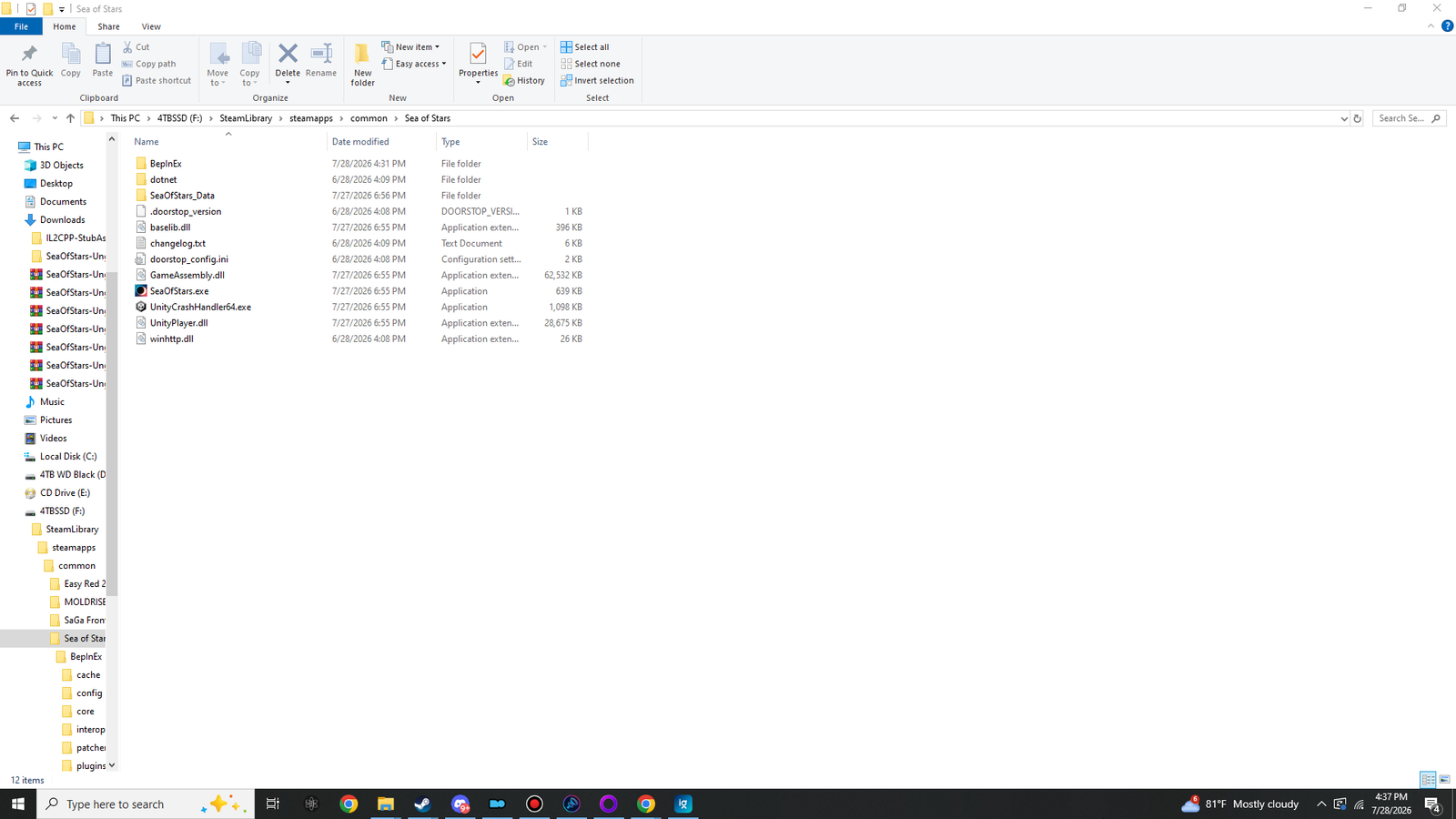
BepInEx, dotnet, .doorstop_version, changelog.txt, doorstop_config.ini and winhttp.dll now live beside the game's own files.| Item | What it does |
|---|---|
winhttp.dll | The UnityDoorstop 4.5.0 proxy. Windows loads it automatically when the game starts, and it bootstraps BepInEx before a single frame renders. This is the file that must sit next to the .exe. |
doorstop_config.ini | Tells the proxy what to launch — already pointed at BepInEx\core\BepInEx.Unity.IL2CPP.dll with the bundled CoreCLR runtime. Leave it exactly as shipped. |
.doorstop_version | A one-line version stamp (4.5.0). Harmless, leave it. |
BepInEx\ | The framework: core\ (BepInEx + Cpp2IL + Il2CppInterop), empty plugins\ and patchers\, and unity-libs\ pre-seeded with the Unity 2021.3.25 base libraries. |
dotnet\ | The bundled .NET CoreCLR 6.0.7 runtime BepInEx runs on. Nothing to install system-wide. |
changelog.txt | Upstream BepInEx changelog for build 6.0.0-be.785. Purely informational. |
Loader's in place. Time for the one launch that does all the heavy lifting — Part 2.