In-game
The F10 control panel, tab by tab
Every tab, every control, every screenshot. Display, Shadows, Resolution, UI Scale, Perf and Info — plus the three ready-made presets worth dialing in first.
How the panel works
- F10 toggles it — rebindable from the Info tab or the config file. It works everywhere, including the title screen.
- Drag the title bar to move it (position is remembered); scroll any tab with the mouse wheel or the draggable right-edge scrollbar.
- Every control prints its full plain-English explanation directly underneath it — the panel is its own manual.
- Changes apply live, within a frame or two. Save Config Now forces a write to disk; changes also save automatically.
- Reset This Tab restores one tab's defaults; RESET EVERYTHING on the Info tab restores them all (both deliberately leave the module master switches alone).
- The universal rule: anything set to GameDefault is completely untouched — the game behaves exactly as shipped. Overrides you switch back off are restored from the game's own captured values on the spot.
- While the panel is open it shows the hardware cursor, draws its own software arrow on top as a guarantee, and consumes clicks under it so you never punch inputs through to the game.
Display — rendering & color pipeline
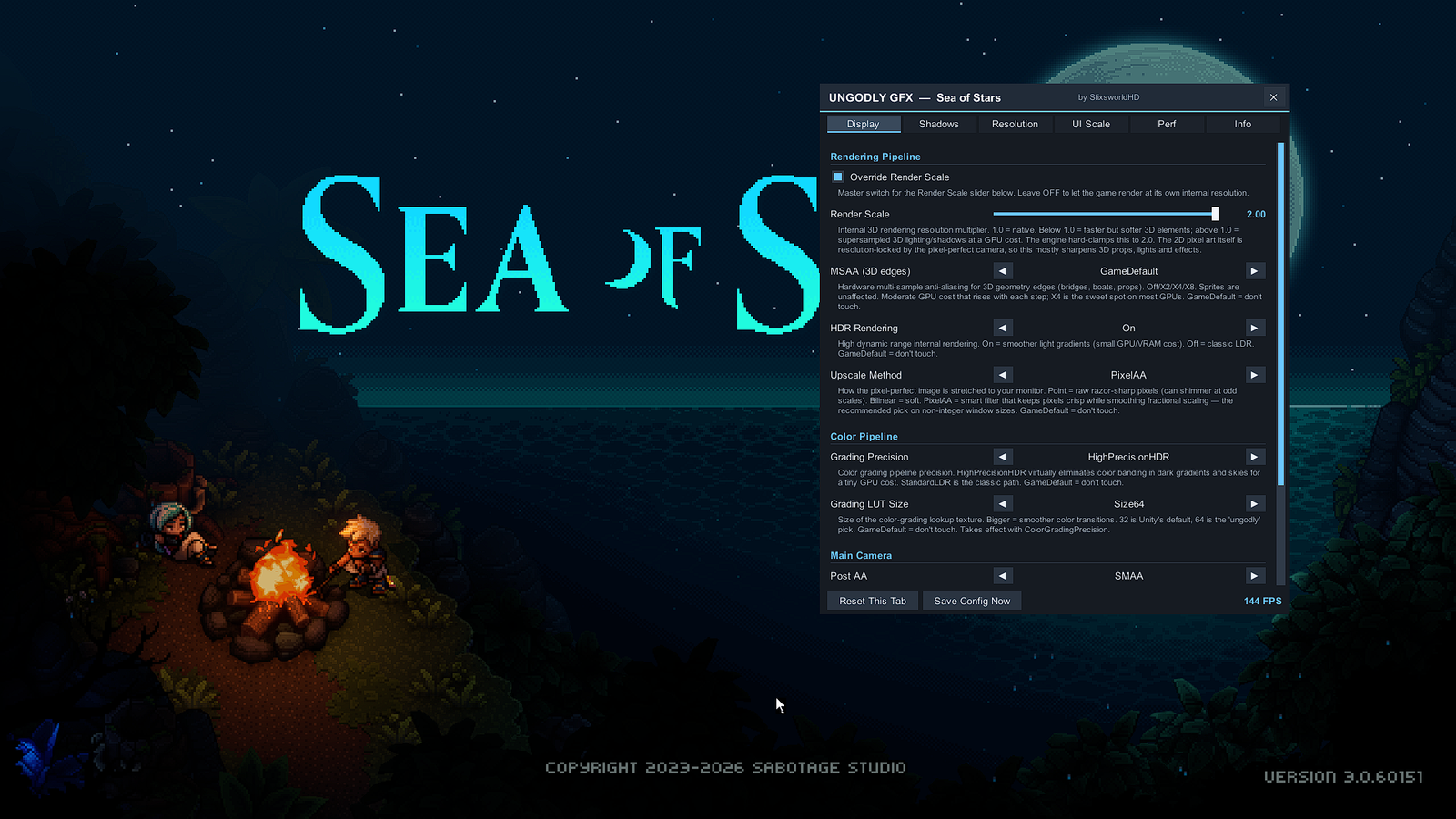
| Control | What it does |
|---|---|
| Override Render Scale + Render Scale | Internal 3D resolution multiplier, 0.5–2.0 (the engine hard-clamps at 2.0). Above 1.0 supersamples 3D lighting, shadows, props and effects; the 2D pixel art itself is resolution-locked by the pixel-perfect camera, so this sharpens the 3D layer specifically. Master switch off = the game renders at its own internal resolution. |
| MSAA (3D edges) | Anti-aliasing level for 3D geometry edges — bridges, boats, props. Off / X2 / X4 / X8; sprites are unaffected. How the level is delivered depends on MSAA Safe Mode below; X4 is the sweet spot either way. |
| MSAA Safe Mode (new in v2.0.1) | On (default, recommended): the hardware pipeline stays at the game's own sample count and your chosen level instead drives camera SMAA at matching quality (X2 → Low, X4 → Medium, X8 → High) — full edge smoothing, zero risk. If you've set Post AA yourself to anything but GameDefault, your explicit choice wins over this bridge. Off (expert): raw hardware multisampling is forced onto the pipeline exactly as selected — which on this game corrupts the custom lighting passes and paints foliage flat blue. That corruption is why Safe Mode exists; details in troubleshooting. |
| HDR Rendering | High-dynamic-range internal buffers: smoother light gradients for a small GPU/VRAM cost. Off = classic LDR. |
| Upscale Method | How the pixel-perfect image is stretched to your monitor. Point = raw razor-sharp pixels (can shimmer at odd scales), Bilinear = soft, PixelAA = smart filter that keeps pixels crisp while smoothing fractional scaling — the recommended pick on non-integer window sizes. |
| Grading Precision | Color-grading pipeline precision. HighPrecisionHDR virtually eliminates color banding in dark gradients and skies for a tiny GPU cost; StandardLDR is the classic path. |
| Grading LUT Size | Size of the color-grading lookup texture (16 / 32 / 64). Bigger = smoother color transitions; 32 is Unity's default, 64 is the "ungodly" pick. Takes effect together with Grading Precision. |
| Post AA (+ quality) | Post-process anti-aliasing on the main camera: SMAA (clean 3D edges, minimal blur, with Low/Medium/High presets), FXAA (cheapest, slightly soft) or Off. Purist pixel fans keep this GameDefault or Off. |
| Camera Dithering | A final 8-bit dithering pass that breaks up color banding in fog, glows and night skies. Practically free. |
Shadows — the overhaul block
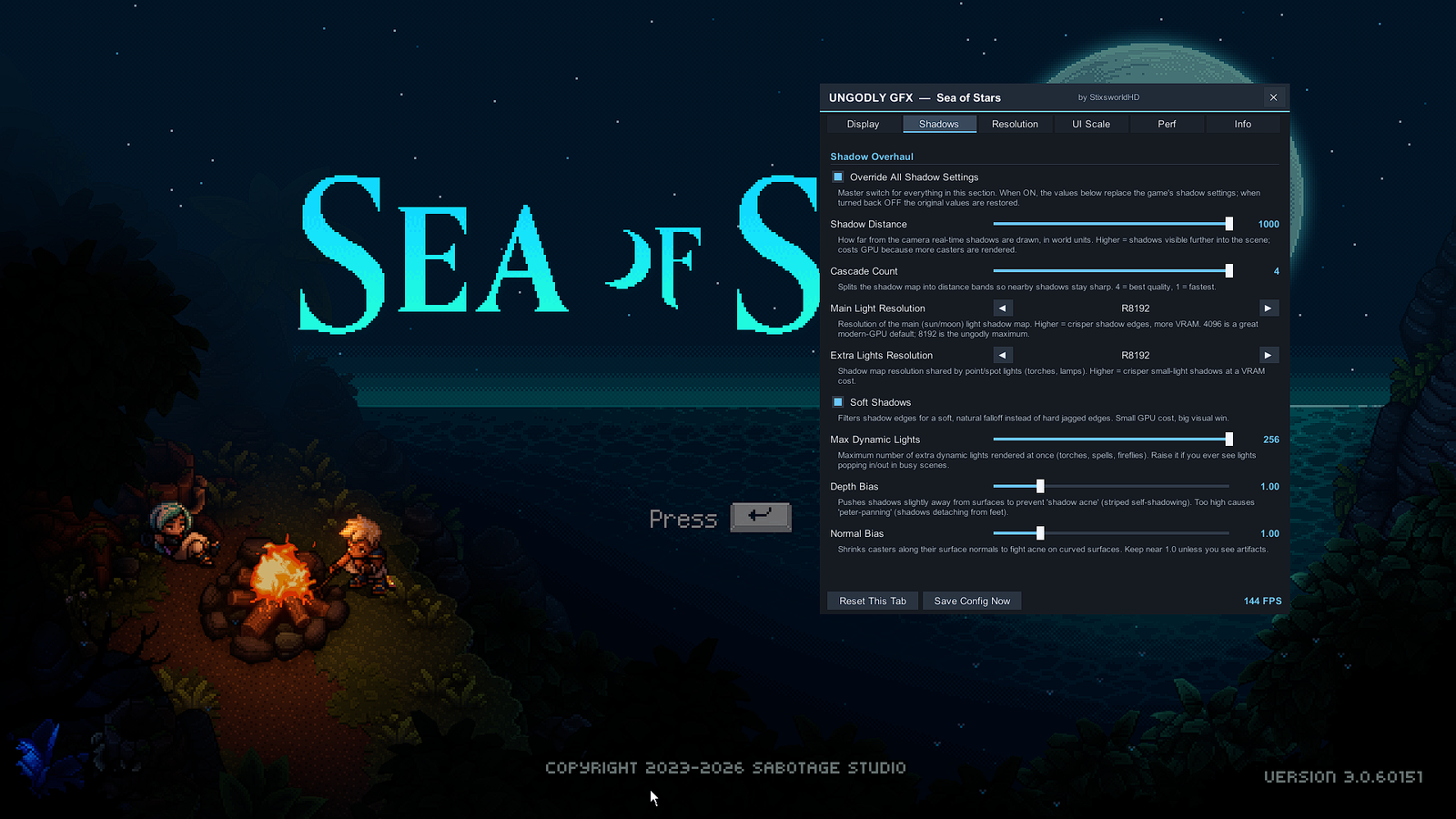
| Control | What it does |
|---|---|
| Override All Shadow Settings | Master switch for the whole block. On = the values below replace the game's shadow settings; back off = the original values are restored. |
| Shadow Distance | How far from the camera real-time shadows are drawn, 25–1000 world units. Higher reaches further into the scene but renders more casters. |
| Cascade Count | 1–4 distance bands so nearby shadows stay sharp. 4 = best quality, 1 = fastest. |
| Main Light Resolution | Sun/moon shadow-map size, 512–8192 px. 4096 is a great modern-GPU default; 8192 is the ungodly maximum (VRAM cost rises accordingly). |
| Extra Lights Resolution | The shadow map shared by point/spot lights — torches, lamps — 512–8192 px. |
| Soft Shadows | Filters shadow edges for a natural falloff instead of hard jagged steps. Small GPU cost, big visual win. |
| Max Dynamic Lights | Simultaneous extra dynamic lights (torches, spells, fireflies), 0–256. Raise it if lights ever pop in and out in busy scenes. |
| Depth Bias / Normal Bias | Anti-acne tuning, 0–5 each. Depth bias pushes shadows off surfaces to stop striped self-shadowing; too much causes "peter-panning" (shadows detaching from feet). Normal bias fights acne on curved surfaces — keep near 1.0 unless you see artifacts. |
Resolution — display-mode control & the UI aspect fix
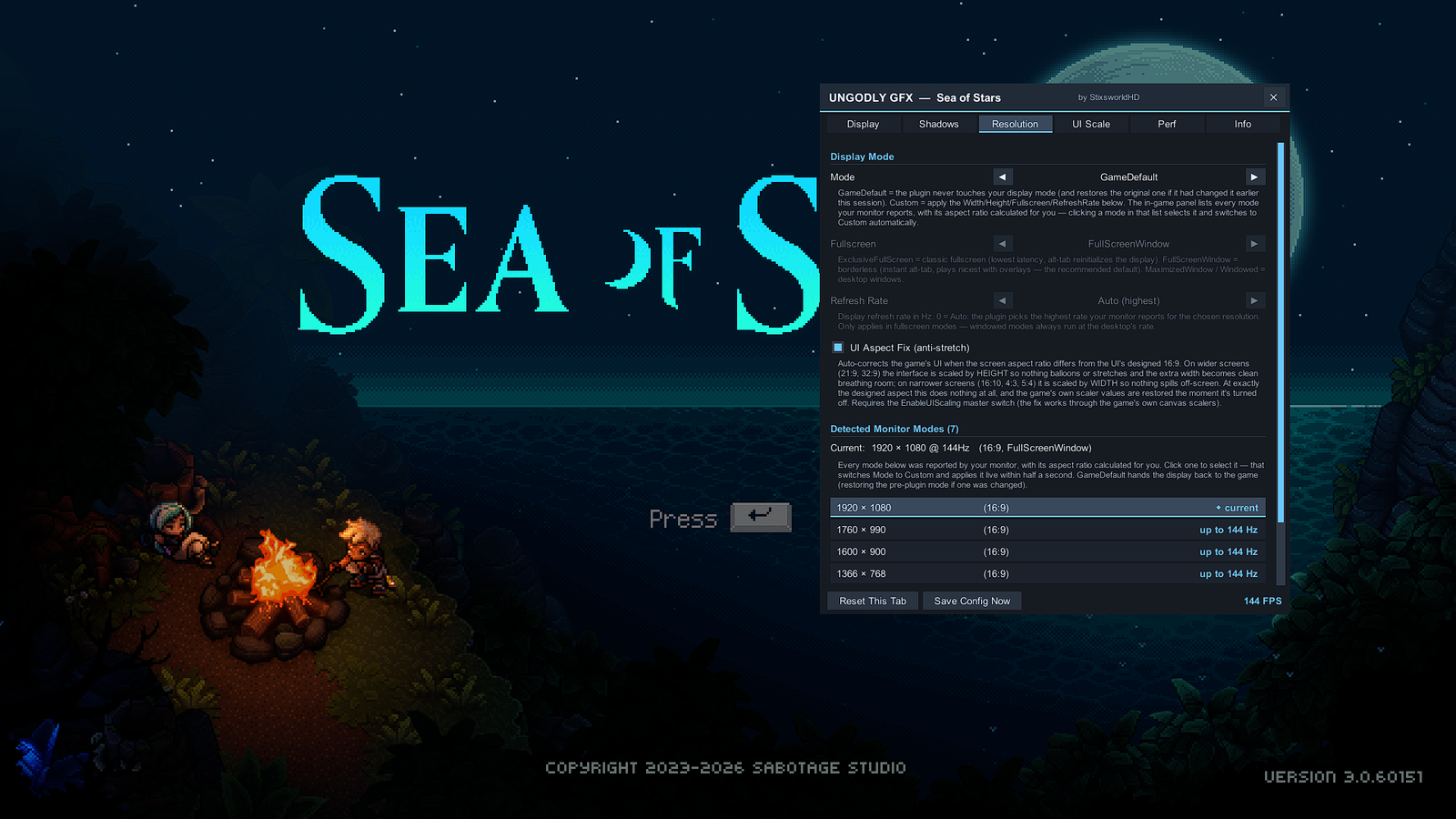
| Control | What it does |
|---|---|
| Mode | GameDefault = the plugin never touches your display mode (and restores the original if it had changed one earlier this session). Custom = apply the Width/Height/Fullscreen/Refresh values. Clicking a mode in the detected list below selects it and switches to Custom automatically. |
| Fullscreen | ExclusiveFullScreen = classic fullscreen, lowest latency, alt-tab reinitializes the display. FullScreenWindow = borderless — instant alt-tab, plays nicest with overlays, the recommended default. Plus MaximizedWindow and Windowed. |
| Refresh Rate | 0 = Auto: the highest rate your monitor reports for the chosen resolution; or any specific Hz. Fullscreen modes only — windowed always runs at the desktop's rate. |
| UI Aspect Fix (anti-stretch) | When the screen's aspect differs from the UI's designed 16:9, every screen-space canvas switches to a safe adaptive rule through the game's own scalers: height-driven on wider screens (21:9, 32:9 — the interface keeps its intended size and the extra width becomes clean breathing room), width-driven on narrower ones (16:10, 4:3, 5:4 — nothing spills off-screen). At exactly 16:9 it writes nothing at all. Requires the UI Scaling module switch to be on. |
| Detected Monitor Modes | Every mode your monitor reports, each with its aspect ratio calculated for you and the top refresh rate available. Click one — it applies live within half a second. GameDefault hands the display back to the game. |
UI Scale — master slider & the seven layers
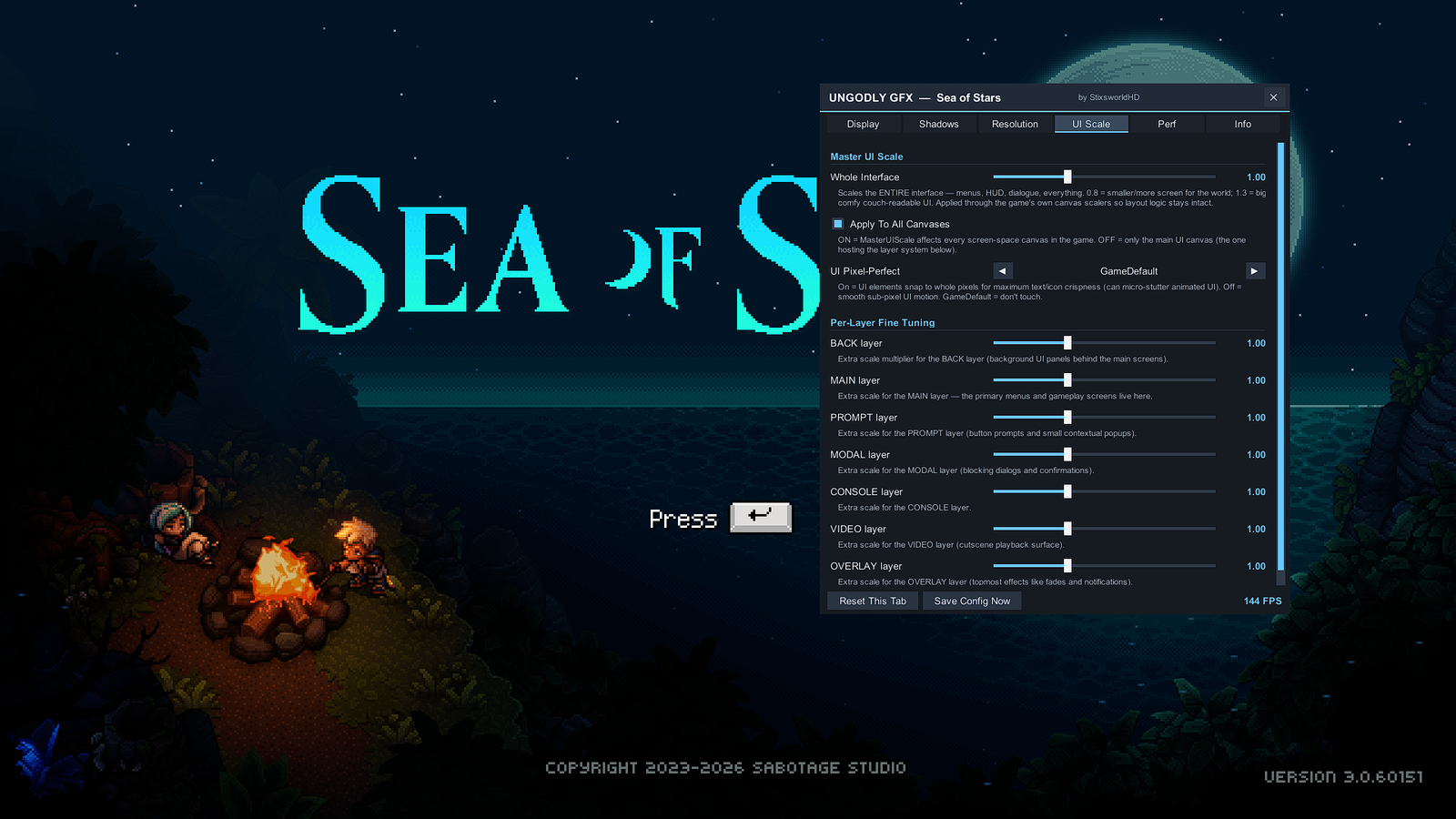
| Control | What it does |
|---|---|
| Whole Interface | Scales the entire interface — menus, HUD, dialogue — 0.5–2.0. 0.8 = smaller UI and more screen for the world; 1.3 = big comfy couch-readable UI. Applied through the game's own canvas scalers so layout logic stays intact. |
| Apply To All Canvases | On = the master scale affects every screen-space canvas in the game; off = only the main UI canvas hosting the layer system. |
| UI Pixel-Perfect | On = UI elements snap to whole pixels for maximum text/icon crispness (can micro-stutter animated UI). Off = smooth sub-pixel motion. GameDefault = don't touch. |
| BACK / MAIN / PROMPT / MODAL / CONSOLE / VIDEO / OVERLAY | Extra 0.5–2.0 multipliers for each of the game's seven UI layers — background panels, primary menus and gameplay screens, button prompts, blocking dialogs, the console layer, cutscene playback, and topmost fades/notifications. Shrink just the button prompts while keeping menus big, or any other mix. |
Perf — frame pacing (and why the tab is small)
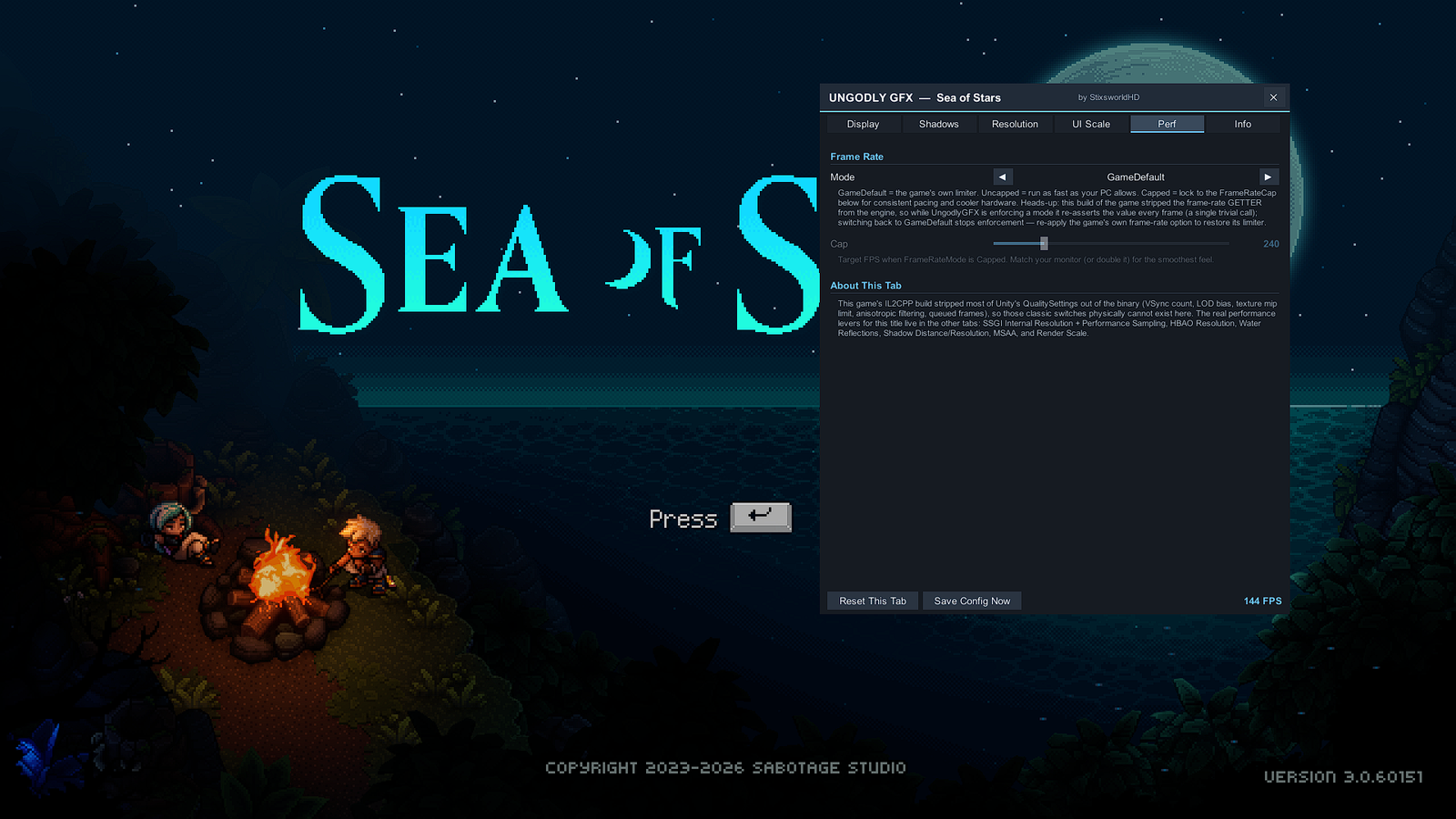
| Control | What it does |
|---|---|
| Mode | GameDefault = the game's own limiter. Uncapped = run as fast as your PC allows. Capped = lock to the cap below for consistent pacing and cooler hardware. |
| Cap | Target FPS when Mode is Capped, 30–1000. Match your monitor's refresh rate (or double it) for the smoothest feel. |
Why only two controls? The Sunset Edition ships an aggressively stripped IL2CPP engine:
vSyncCount, LOD bias, the texture mip limit, anisotropic filtering and queued-frame
controls were physically removed from the binary, so no plugin can offer them honestly. The real
performance levers for this title are on the other tabs — Shadow Distance and Resolution, MSAA and
Render Scale. One more stripping quirk: the engine kept only the setter for the frame-rate
cap, so while a mode is active UngodlyGFX re-asserts your value every frame (a single trivial call —
which also means it always wins). Switching back to GameDefault stops enforcement; re-apply the
frame-rate option in the game's own settings once to restore its limiter.
Info — diagnostics, live status & panel settings
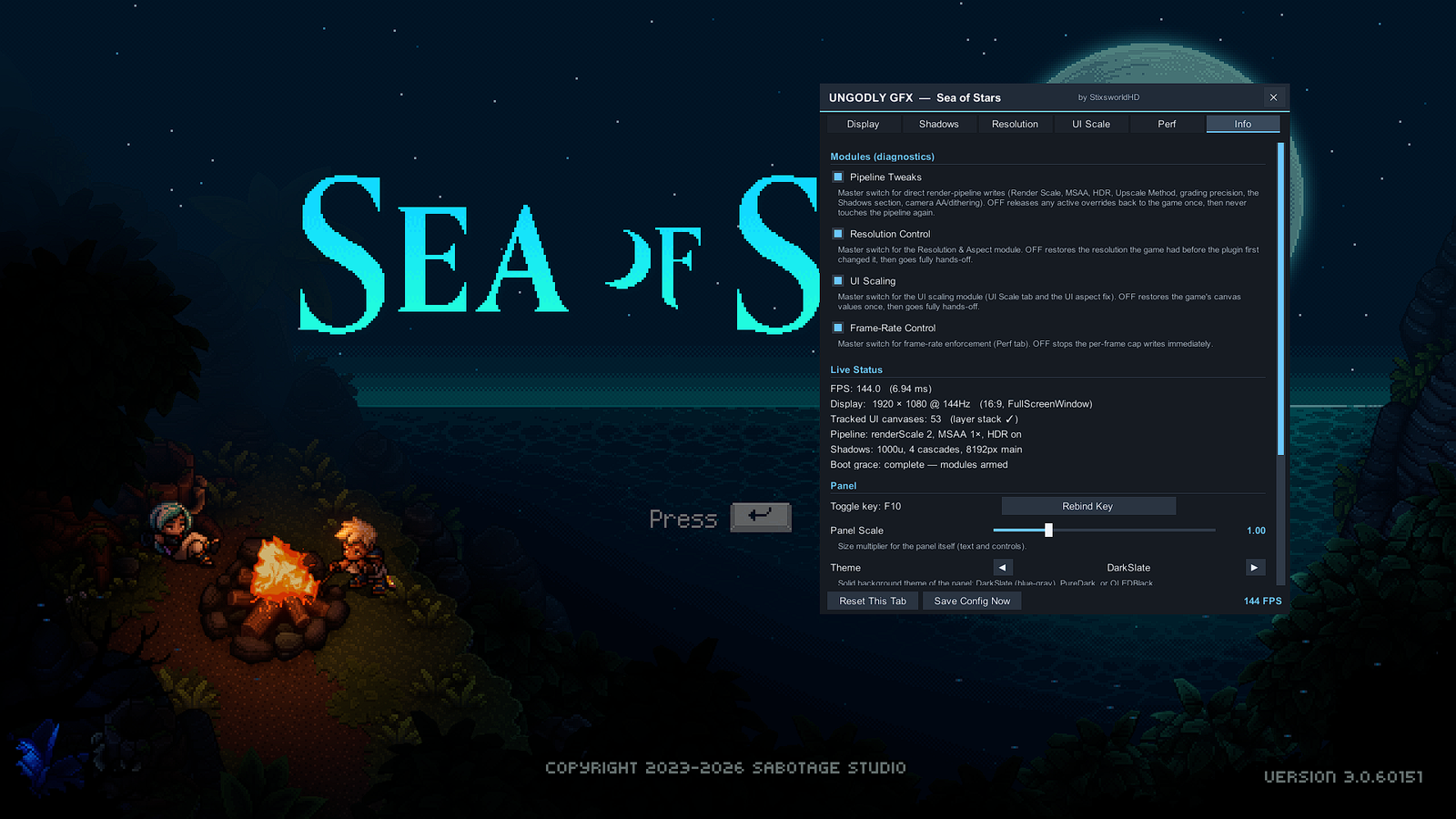
| Area | What it does |
|---|---|
| Modules (diagnostics) | Four independent master switches — Pipeline Tweaks, Resolution Control, UI Scaling, Frame-Rate Control — all on by default. Turning one off releases whatever it was overriding back to the game exactly once, then goes fully hands-off: if anything ever misbehaves, you can bisect the cause in under a minute without touching files. |
| Live Status | Real-time readout: FPS and frame time, current display mode, tracked UI canvases (with layer-stack detection), active pipeline values (render scale, MSAA, HDR), active shadow values, and the boot-grace state — "complete — modules armed" means the plugin is fully live. |
| Panel | Rebind the toggle key (default F10), scale the panel itself (0.75–1.75), and pick a theme: DarkSlate (blue-gray), PureDark or OLEDBlack. |
| Also here | The FPS-overlay toggle and corner picker, and the RESET EVERYTHING button. |
Three presets worth dialing in
🔥 Ungodly Max
Render Scale on @ 2.0 · MSAA X8 · HDR On · HighPrecisionHDR grading + LUT 64 · Shadows overridden: distance 600, 4 cascades, 8192/4096 maps, 256 lights · Dithering On · your monitor's top mode at max Hz from the Resolution tab. The screenshots on this page live near this preset.
⚖️ Balanced Beauty
Shadows overridden at the as-shipped defaults · MSAA X4 · HighPrecisionHDR grading · everything else GameDefault. Most of the visual win at a fraction of the cost.
🕹️ Pixel Purist
Post AA Off · MSAA Off · Upscale Method Point · everything else GameDefault. Raw, razor-sharp pixels exactly as the sprite artists drew them.
Prefer editing on disk, or want the exact defaults and ranges? The config file reference maps all 49 settings.